
Welcome to the ScorpionTrack Fleet User Guide. ScorpionTrack helps you protect, manage and get the most from your fleet, with 24/7 monitoring, live tracking, customisable alerts and a powerful suite of reports. This guide walks you through getting set up, day-to-day management, theft protection, alerts, reporting, and the mobile app.
Introduction
Product Overview
ScorpionTrack actively protects and manages your fleet using advanced GPS tracking with 24/7 monitoring, all year round. It combines theft protection with a comprehensive range of fleet-management and convenience features (live tracking, customisable alerts, geofencing, driver and vehicle management, and detailed reporting) to give you security and control across your whole fleet.
How Scorpion Helps Your Business
Here are seven ways your business can benefit from using ScorpionTrack for your fleet:
- Reduce your costs — Significant savings potential across fuel, insurance and vehicle maintenance, customers report average savings of 15% month to month on fuel alone.
- Improve productivity — Reduce your daily administrative workload and manage your vehicles and drivers with precision.
- Improve customer service — Respond proactively and immediately to customers’ needs, with evidence for SLA compliance.
- Support mileage recording — Easily distinguish between business and private mileage.
- Environmental dividends — Reduce your carbon footprint and promote sustainability.
- Risk, policy & standards compliance — Supports an employer’s duty of care and policy on drivers and vehicle use, and the reporting requirements of FORS, CLOCS and similar standards.
- Easy to use, quick to benefit — An easy-to-use system with no downloads required.
ScorpionTrack customers can also benefit from significant insurance premium reductions by demonstrating reduced fleet risk through monitoring and safer driving. Upgrading to a Monitored Subscription adds Scorpion’s 24/7/365 Theft Monitoring Service (UK Police Preferred Specification and Thatcham criteria): no additional hardware or installation required. Contact the Scorpion Subscriptions team on 01257 249 928.
Product Features
The ScorpionTrack range (S7, S5 and S5+) includes 24/7 theft monitoring, Thatcham approval, a multi-network roaming SIM, ScorpionTrack App access, tow-away & tamper alerts, automatic health checks, a 2-year warranty, low current draw, heavy-duty waterproofing, automatic immobilisation (S5+), Automatic Driver Recognition tags, and transferability to a new vehicle.
Getting Started
How To Get Set Up
As part of installation you’ll receive an email containing login details for the ScorpionTrack website (scorpiontrack.com). If you haven’t received it or need a duplicate, call the ScorpionTrack Helpdesk on 01257 249 928. Click ‘Tracking Login’ at the top right, authenticate your account using the link in your welcome email, then log in. As the main Admin User you can add additional Users and set their permissions. Keep your contact details up to date under ‘My Account’ so the Vehicle Recovery team can always reach you.
Monitoring Subscription
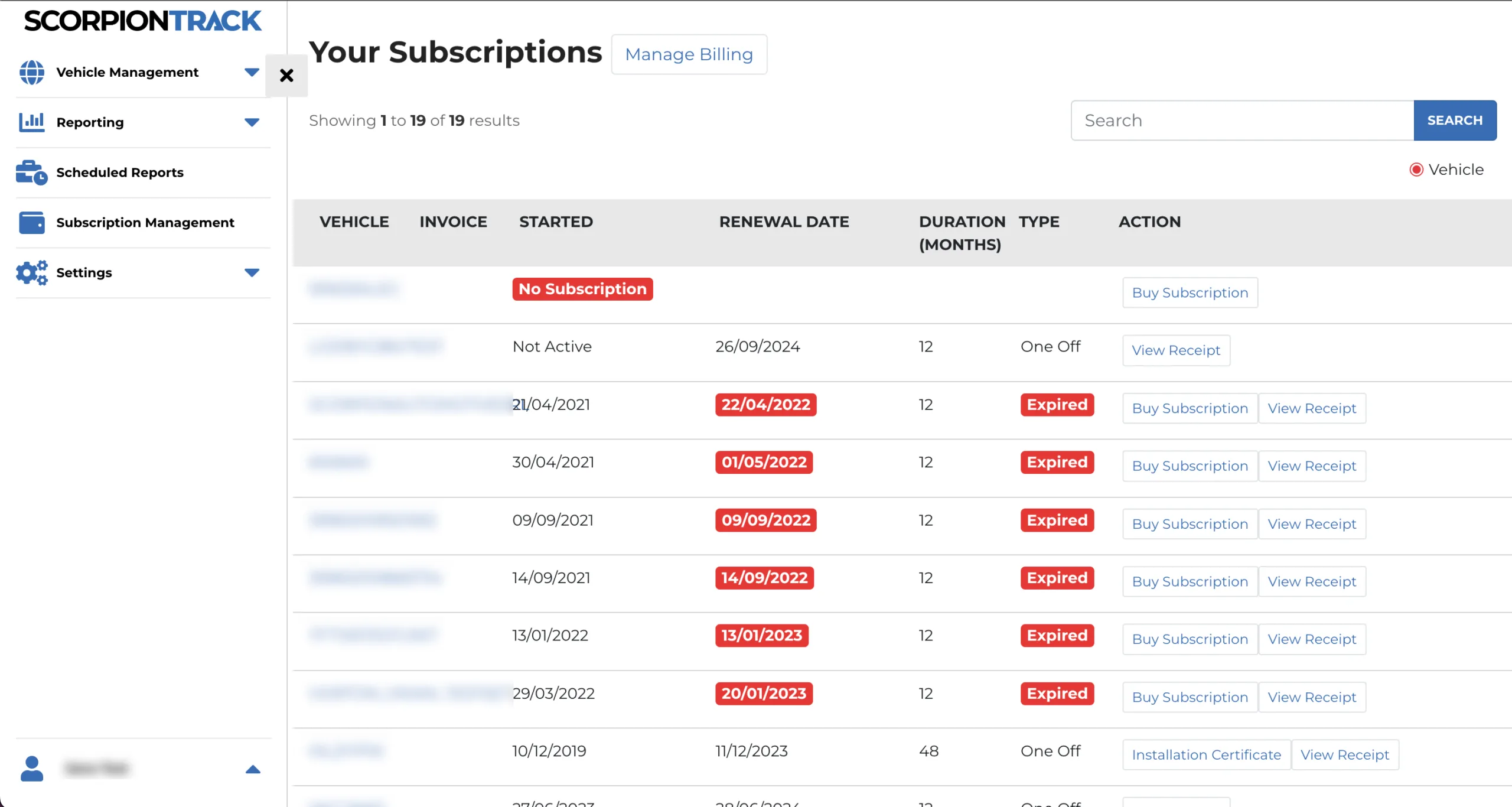
ScorpionTrack’s monitored service has staff available 24 hours a day, 365 days a year. There is an annual fee, payable on the website or by calling the Subscription Team on 01257 249 928. To purchase online, log in, click ‘Subscription Management’ in the left-hand menu, find the relevant vehicle and click ‘Buy Subscription’. Trackers only provide theft detection while the subscription is active (minimum 12-month term); if payments lapse, no alerts are generated and the live location won’t be visible. Non-payment may also affect any insurance cover linked to the tracker.
User Management
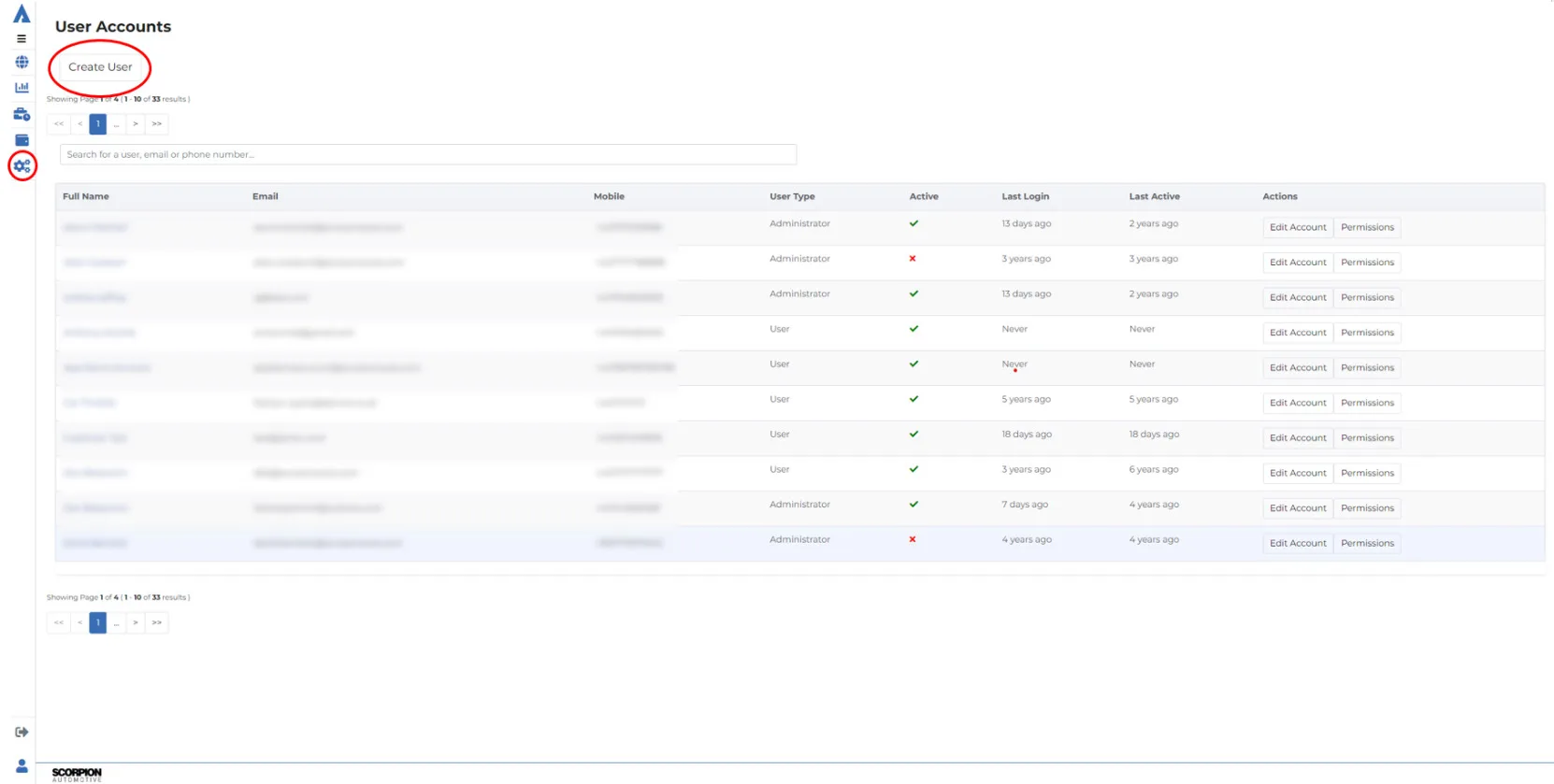
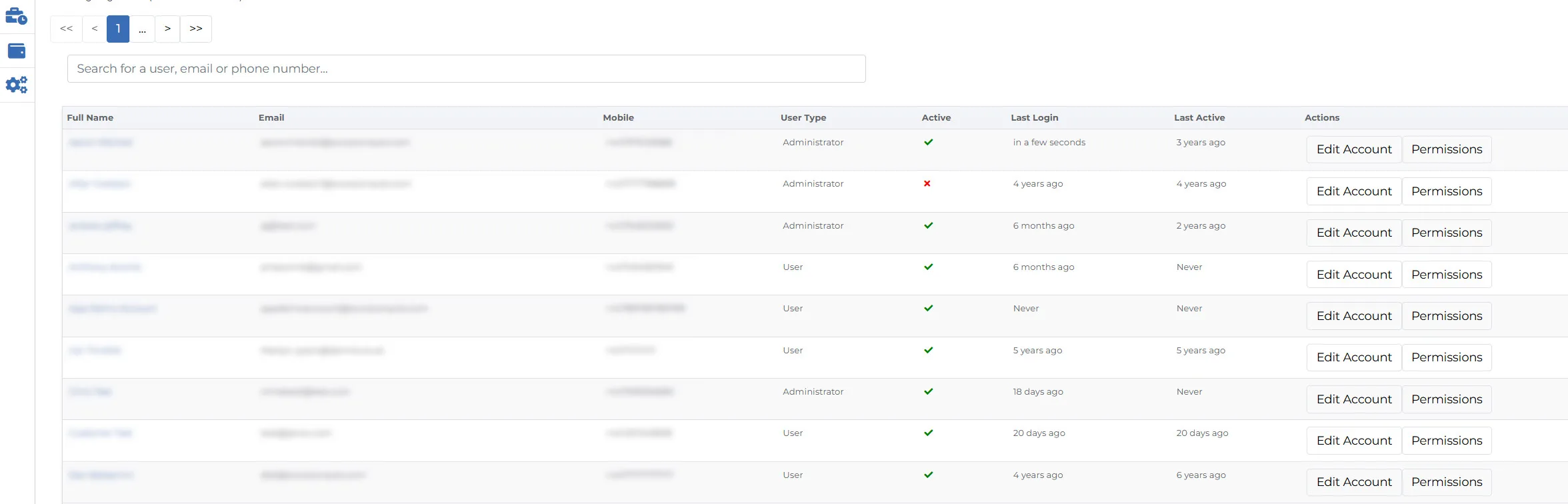
Once set up, you may wish to add more Users to the account, for example fleet managers, or drivers who need to view the account. The main account holder controls each User’s level of access. To add a User, select ‘Settings’ in the left menu, then ‘Users’, then ‘Create User’. When filling out the details, choose an ‘Account Type’: ‘Administrator’ gives full access, while ‘User’ lets you then edit granular ‘Permissions’ controlling what they can see or edit.
To limit a user to specific vehicles, first create a vehicle group: go to ‘Vehicle Management’ > ‘Groups’ > ‘Create Vehicle Group’, name it, then ‘Assign Vehicles’ to add one or more vehicles. Then go back to ‘Settings’ > ‘Users’, open the user, select ‘Edit User Account’, and assign the vehicle group from the drop-down.
Driver Management
You can also add Drivers (as distinct from Users). Drivers can’t log in: they exist purely for fleet-management purposes, letting you monitor your fleet more effectively. Add them under ‘Vehicle Management’ > ‘Drivers’ > ‘Create Driver’. Drivers can be assigned to vehicles (see Vehicle Management), after which you can monitor their movements more closely and run driver-specific reports. To use Drivers with Driver ID Dallas tags, refer to the Driver ID User Manual.
Vehicle Management
By default you land on the ‘My Vehicles’ page in the ‘Vehicle Management’ section, where you can search for, view and edit your vehicles. From here you can edit vehicle details, download or email the installation certificate, and manage ‘Vehicle Modes’: such as ‘Transport Mode’ if a vehicle is being transported/towed (stops movement-without-ignition alerts) or ‘Garage Mode’ if it’s in for service (stops battery-disconnection alerts). You can also toggle MOT and Tax reminders, view each vehicle’s subscription, and use the Calendar to record important dates with reminders.
Live Map
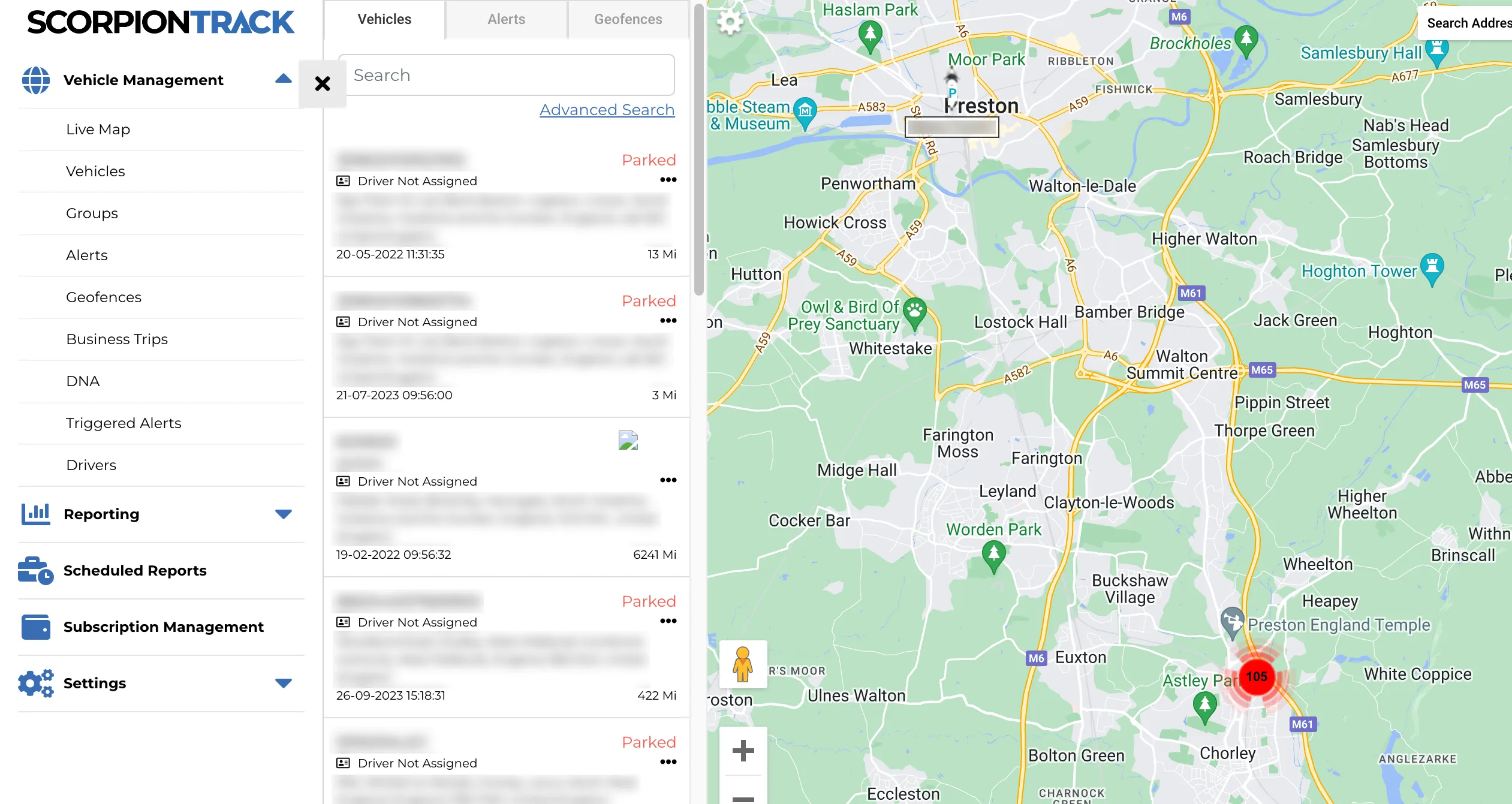
The ‘Live Map’, under ‘Vehicle Management’, shows all your vehicles and their last known location. Vehicles are listed beside the side menu; selecting one shows where it is and whether it’s parked or moving. Map functions (zoom, view type) are at the top right, and right-clicking the map offers more options, including creating a geofence.
Vehicle Ownership
If you buy a vehicle that already has a tracker fitted, contact the Subscriptions team (subscriptions-team@scorpionauto.com / 01257 249 928) to request a ‘New Ownership Form’, and attach the front of the V5 plus a Bill of Sale or proof of purchase. If you’re selling a vehicle whose tracker the buyer wishes to keep registered, complete a ‘Transfer Ownership’ form. Do not manually amend the contact details in the account, it won’t update correctly on our system.
Installation Certificate (UK Only)
As our units are insurance-industry approved, they may qualify you for an insurance discount. If your insurer needs an installation certificate as proof of fitment, download it from the ‘Your Subscriptions’ page: available once the monitoring subscription has been paid and activated.
Vehicle Theft
Automated Alerts
With a subscription in place the system is active and monitored 24/7. In the event of theft the tracker generates an automatic alert to our 24/7 Vehicle Recovery team if it detects the vehicle moving more than 150m from its last known position without the ignition on (and, for S5 trackers, without the Driver Recognition Tag present), or the battery being disconnected or its voltage dropping significantly. The recovery process then follows: the owner is contacted and confirms the theft, obtains a crime reference number from the police, informs the Vehicle Recovery team (01257 240 945), and the team liaises with the police to aid recovery.
Theft Procedure
In the event of theft: contact the local police to report it and obtain a Crime Reference number; call the Vehicle Recovery team on 01257 240 945; and the team will remotely activate an alert condition and liaise with the police. Accurate contact details are vital so we can confirm a theft and your identity. Most recoveries happen within the first 2 hours, but fitting a tracker does not guarantee recovery: always take normal precautions (secondary security, well-lit parking, securing keys).
Custom Alerts
Alert Options
As part of your subscription you can manage and customise dashboard alerts, including standard alerts and geofence alerts. Alerts aren’t set up automatically, you create them manually, and each can notify a defined User by app notification, email or SMS. The most useful standard alerts are: Low Battery (warns when the vehicle battery drops below a set level), Battery Disconnect (on complete loss of power: also triggers a Recovery-team phone call on a monitored subscription), Ignition On (an early warning if someone tries to start a vehicle), and Idle Time (when a vehicle idles beyond a set period).
Geofence Alerts
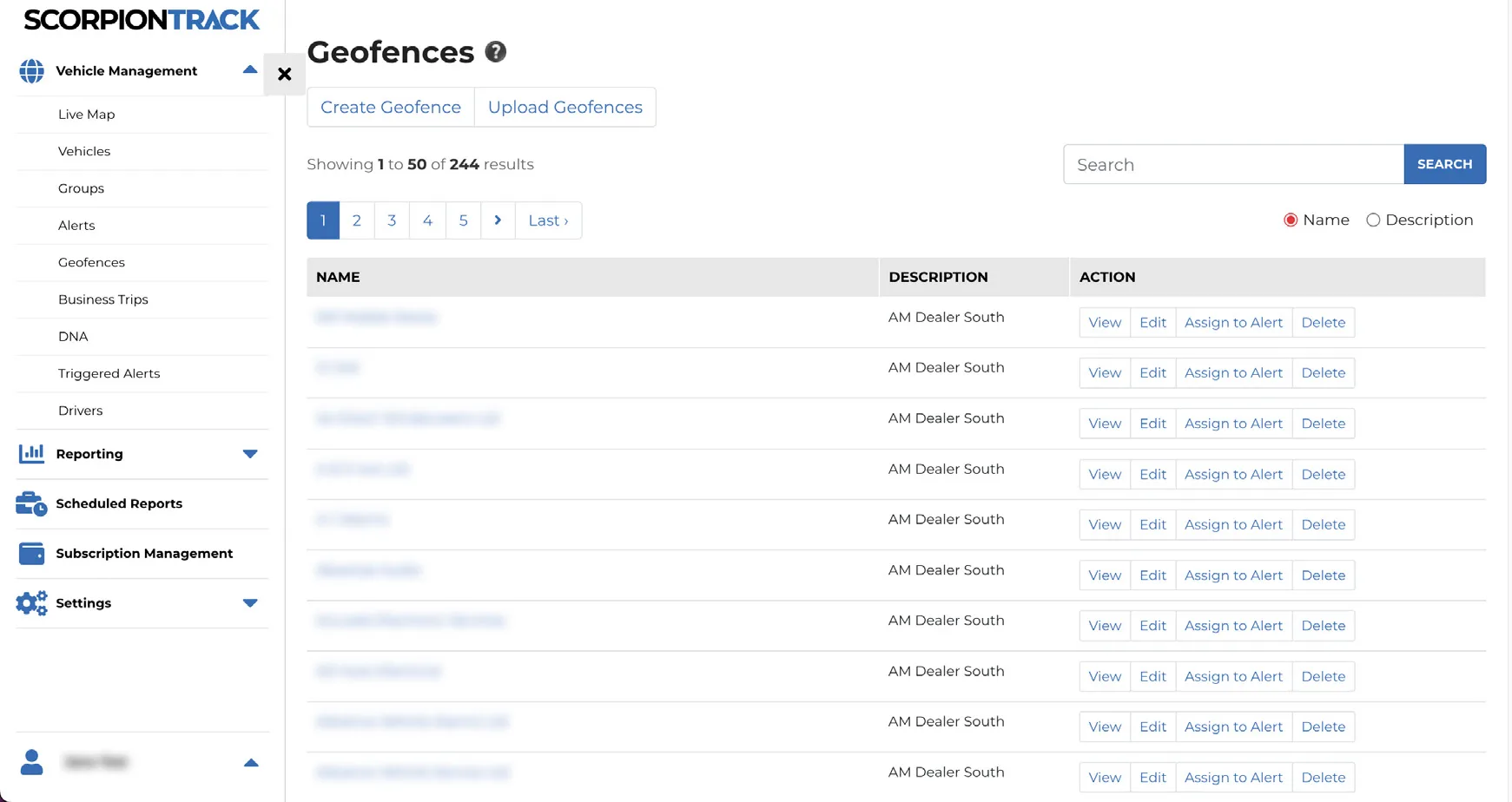
A geofence is a virtual perimeter you draw on the live map to report a vehicle’s entry and exit, ideal for fleets (e.g. monitoring when a vehicle leaves a depot or site, or as a reminder for toll/congestion charges). Create the geofence first under the ‘Geofences’ tab > ‘Create Geofence’: for a custom shape, left-click points around the area until they join into a ‘net’ (right-click a point to remove it); for a circular geofence, search a postcode/town, click the location, then size it with the options below the map. Set geofences about 10 metres wider than the actual perimeter to avoid false alerts from satellite drift.
How To Set Up An Alert
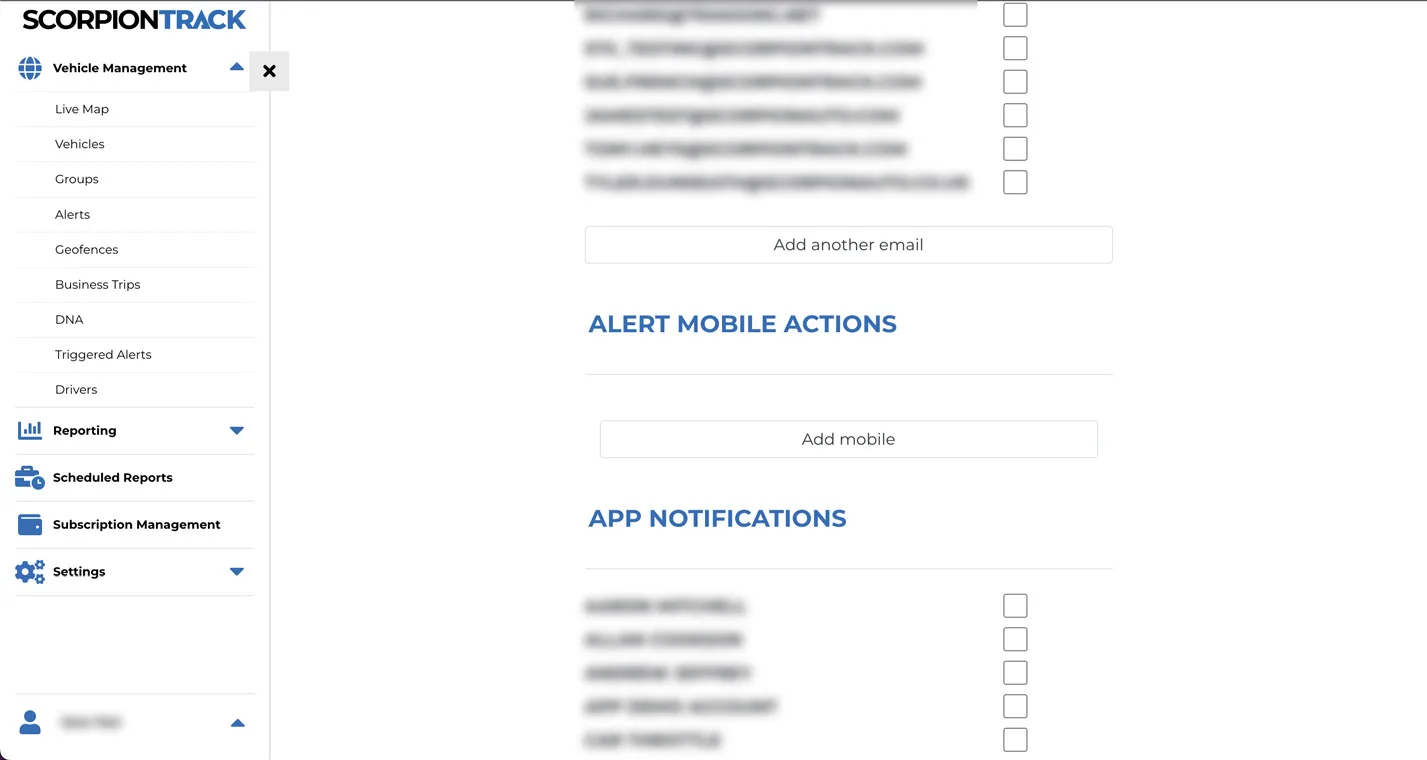
To set up or manage alerts, log in, open ‘Alerts’ under ‘Vehicle Management’ to reach the alerts dashboard, and click ‘Create Alert’. Name the alert, set its level and a description, choose the ‘Alert Type’ from the drop-down, then select how to be notified (email, mobile number for text alerts, or app notifications). Optionally schedule when the alert is active, then click ‘Create Alert’. By default it applies to all vehicles, which you can edit from the ‘Alerts’ page.
Reporting
From your account you can run a range of reports to help run your fleet. On-demand reports run as a one-off in the browser (some can be exported to Excel, PDF or HTML); Scheduled Reports run automatically and email to chosen recipients.
On-Demand Reports: the 13 Report Types
Select ‘Reporting’ from the left menu to choose from 13 report types:
- Journey — View the journeys made by your vehicles, probably the most-used report.
- Driver Behaviour — A breakdown of how vehicles have been driven (speeding, harsh acceleration/braking, excessive idling), scored out of 100.
- Idle — See whether any vehicles have idled longer than defined periods.
- Alert — The dashboard alerts triggered within a period, e.g. geofence entries/exits or out-of-hours use.
- Odd Hours — Identify journeys made outside typical working hours (e.g. outside 9am-5pm).
- Point of Interest / Geofence — How much time vehicles spent within set geofences, useful for site arrivals/departures and depot returns.
- Engine Hours — How many hours vehicles were used within a timeframe, good for fuel allowances and driving-time compliance.
- Service — Hours used since a vehicle’s last service date (keep the service date updated for accuracy).
- Auxiliary / PTO — How long a connected auxiliary (e.g. a gritter or emergency lighting) has been switched on.
- Odometer / Mileage — Mileage completed by each vehicle since installation (update the odometer at install for best accuracy).
- Timesheet — Driving hours completed within a set time frame, in timesheet format, linked to drivers where set up.
- Activity — A timeline of vehicle activity (green = in use, red = inactive) to quickly spot inactivity.
- Over-speed — Flag vehicles exceeding the speed limit, by percentage or fixed-speed threshold.
Running a Report
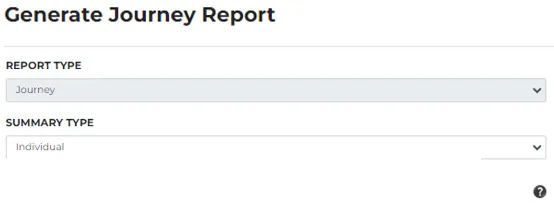
In the left menu select ‘Reporting’, then the report type. Configure it using the on-screen fields, for example, the Journey report lets you set the ‘Report Type’ and a ‘Summary Type’ (individual journeys, all daily journeys, or all journeys in a month). Further down you choose the Group, Vehicle and Driver, optionally limit to business trips or show auxiliaries, set a date ‘Range’ (or custom From/To dates) and a working-hours range, and pick the ‘Export Configuration’ (browser, Excel, PDF or HTML). Then select ‘Generate Report’. The question-mark icons offer help on each field.
Scheduled Reports
Scheduled Reports let you design a report of custom configuration and have it automatically emailed to selected users on a schedule (daily, weekly, monthly or custom). Not every report type can be scheduled, those that can include Journey, Journey with Aux, Idle Time, Triggered Alert, Geofence, Engine Hours, Auxiliary, Timesheet and Driver Statistics. In the left menu select ‘Scheduled Reports’ > ‘Create Scheduled Report’, name it, choose the ‘Report Type’ and configure it, then set the schedule.
Choose the execution days and time range, set ‘Report Units’ (miles/kilometres, litres/gallons, kilograms/pounds of CO2), and pick a schedule type: Daily (runs on each selected day, with a ‘Days Preceding’ window), Weekly (runs once per week, defaulting to the preceding 7 days), or Monthly (runs on the first of each month for the whole previous month). Under ‘Export Configuration’ choose a website report or a PDF/Excel/HTML export (PDF and Excel separate vehicles or drivers into chapters/worksheets). Finally set the ‘Recipient’ (All Users, a specific email address, or selected users) and click ‘Create Report’.
ScorpionTrack App
Mobile App Overview
The ScorpionTrack mobile app lets you remotely access security, safety and convenience features from one place, including subscriptions, customisable alerts and modes. It’s available on Google Play and the Apple App Store and offers GPS location with journey history, accurate location via GPS/Galileo/GLONASS, battery status, Zero Speed & Privacy mode, and 24/7/365 monitoring.
Managing Your Subscription
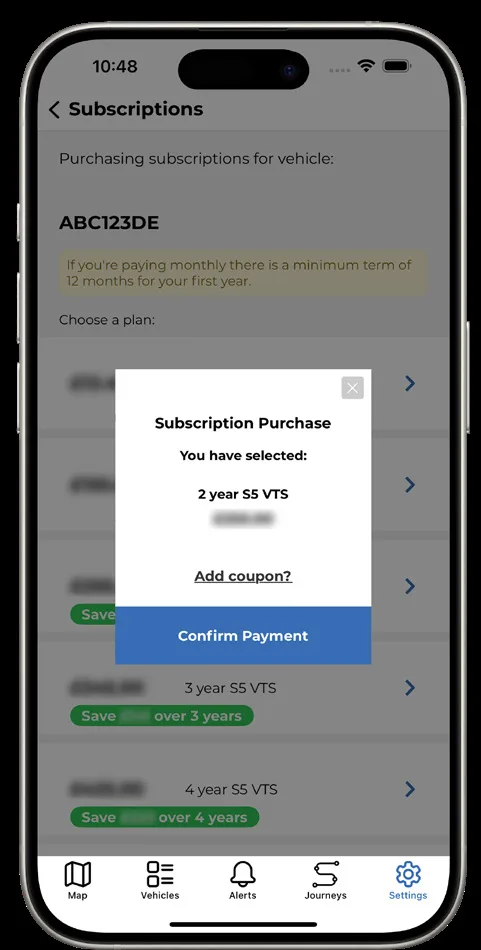
From the app you can manage and purchase a subscription for any registered vehicle. Go to ‘Settings’ (bottom right) and tap ‘Subscriptions’ to see all your vehicles; active subscriptions show their length and expiry. Select a vehicle, tap ‘Buy Subscription’, choose a plan, then ‘Confirm Payment’, and switch the vehicle’s ignition on to activate it.
Managing Dashboard Alerts & Modes
Tap ‘Alerts’ at the bottom to view triggered alerts with their date and time. Create custom alerts via ‘Settings’ > ‘Alerts’ > the plus icon (name it, add a description, choose the type and the contact details to notify, then ‘Save’). The app also manages modes (to prevent triggering alarms during transport or servicing): tap ‘My Vehicles’, select a vehicle, scroll to ‘Settings’, and toggle modes as needed.
Phone Tag
The app lets you use your phone as an Automatic Driver Recognition (ADR) tag alongside the physical S5 tag, identifying the authorised user. Phone Tag works across multiple vehicles from one account, select the vehicle you wish to use and authorisation is sent at the tap of a button. Only one Phone Tag can be active at a time, so select the correct vehicle before setting off.
ADR Tag
Overview
All ScorpionTrack S5 units are supplied with 2x Automatic Driver Recognition (ADR) tags, as required under Thatcham Approval Standards. The tag communicates wirelessly with the unit to identify the authorised user; if the vehicle moves more than 150 metres without the tag in range, an alert is sent to our 24/7 Vehicle Recovery team. Keep the tags separate from your ignition keys for extra security. The tag uses a CR2450 lithium cell lasting up to 12 months; the LED flashes rapidly when the battery is low, replace it promptly to avoid false alerts. A lost or damaged tag can be replaced by contacting us on 01257 249 928.
ADR Tag Battery Replacement
If the tag shows a low battery, replace it promptly: locate the recess in the casing edge and gently prise the upper and lower halves apart. The CR2450 battery is retained by a clip, slide it out away from the PCB, noting the polarity, fit the new battery the correct way round, then align the halves and squeeze firmly to click them back together.
Specifications
Tracker Internal Battery
So a unit can operate when the ignition is off or the vehicle battery is removed, it contains a rechargeable battery (normally charged while the vehicle is in use), specified to last a minimum of three years with average use. If a vehicle is stored for a long period, use a battery charger to keep both batteries healthy, if the internal battery fully discharges the unit may need replacing, which isn’t a warrantable defect. For internal-battery performance issues, contact your ScorpionTrack dealer.
Troubleshooting
ScorpionTrack units contain no user-serviceable parts and need no regular maintenance. To verify operation, log in and confirm the vehicle location on the live map. The location updates every 2 minutes when the ignition is on; if it looks incorrect, drive the vehicle outside for 4 minutes, and if it still doesn’t update, contact your supplying dealer.
Warranty
ScorpionTrack units carry a comprehensive 2-year warranty in addition to your statutory rights, covering material or manufacturing defects within 2 calendar years of first installation. For warranty repairs, contact the installing dealer.
Terms and Conditions
Use of the ScorpionTrack system is subject to the ScorpionTrack Terms & Conditions, available on our website. To find them, scroll to the very bottom of the page and click ‘Terms & Conditions’.
Contacts
- Sales Enquiries — sales@scorpionauto.com / 01257 249 928 (Opt. 1, Opt. 3)
- Technical Enquiries — technical@scorpionauto.com / 01257 249 928 (Opt. 1, Opt. 2)
- Subscription Enquiries — subscriptions-team@scorpionauto.com / 01257 249 928 (Opt. 1, Opt. 4)
- 24/7 Vehicle Recovery Team — 01257 240 945 (please only call this number in the event of theft)
Frequently Asked Questions
What’s the difference between a User and a Driver?
Users can log in to the account (with permissions you control); Drivers cannot log in and exist purely for fleet-management, you assign them to vehicles to monitor movements and run driver-specific reports.
How many report types are there, and can they be exported?
There are 13 on-demand report types (Journey, Driver Behaviour, Idle, Alert, Odd Hours, POI/Geofence, Engine Hours, Service, Auxiliary/PTO, Odometer, Timesheet, Activity, Over-speed). Many can be exported to Excel, PDF or HTML, and several can also be set up as automatic Scheduled Reports.
Can reports be emailed to me automatically?
Yes. Scheduled Reports can be configured to run daily, weekly, monthly or on a custom schedule and emailed to All Users, a specific email address, or selected users, with a PDF, Excel or HTML attachment.
How do I restrict a user to certain vehicles?
Create a vehicle group under Vehicle Management > Groups, assign the relevant vehicles to it, then edit the user under Settings > Users and assign that vehicle group to them.
What happens if my monitoring subscription lapses?
Theft detection only works while the subscription is active (minimum 12-month term). If payments aren’t received or renewed, no alerts are generated, the live location isn’t visible, and any insurance cover linked to the tracker may be affected.